5. Render Modes
Vuer supports multiple render modes that control how your 3D scene is rendered, from standard real-time rendering to photorealistic path tracing. Each mode serves different purposes and offers unique visual characteristics.
- Post-processing - Add bloom effects and visual polish with screen-space post-processing
- Path Tracing Renders - Create photorealistic renders with accurate global illumination
Visual Comparison
Here's the same scene rendered with different modes to illustrate their visual characteristics:
| RGB (Default) | Post-process | Path Tracing |
|---|---|---|
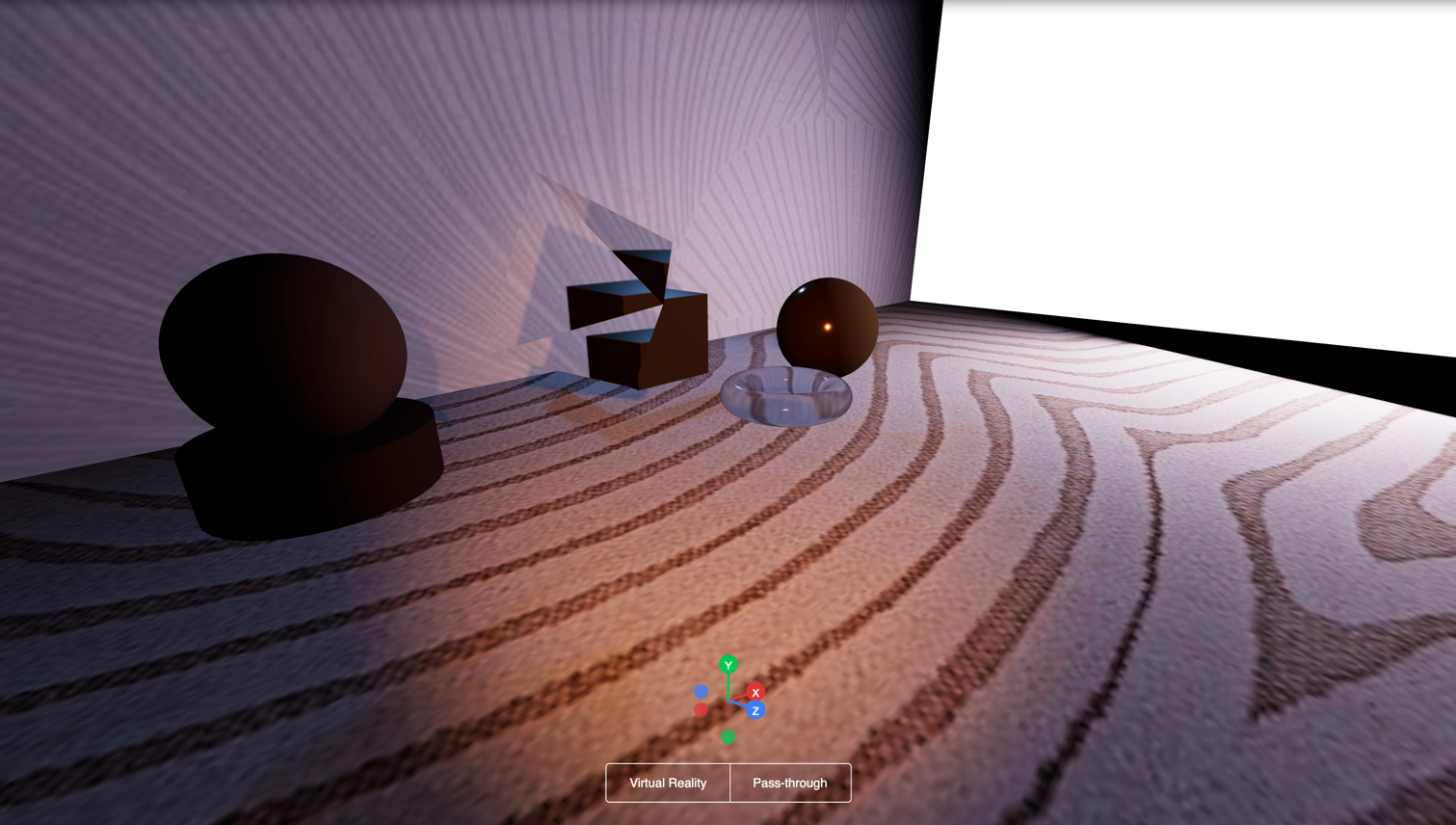 |
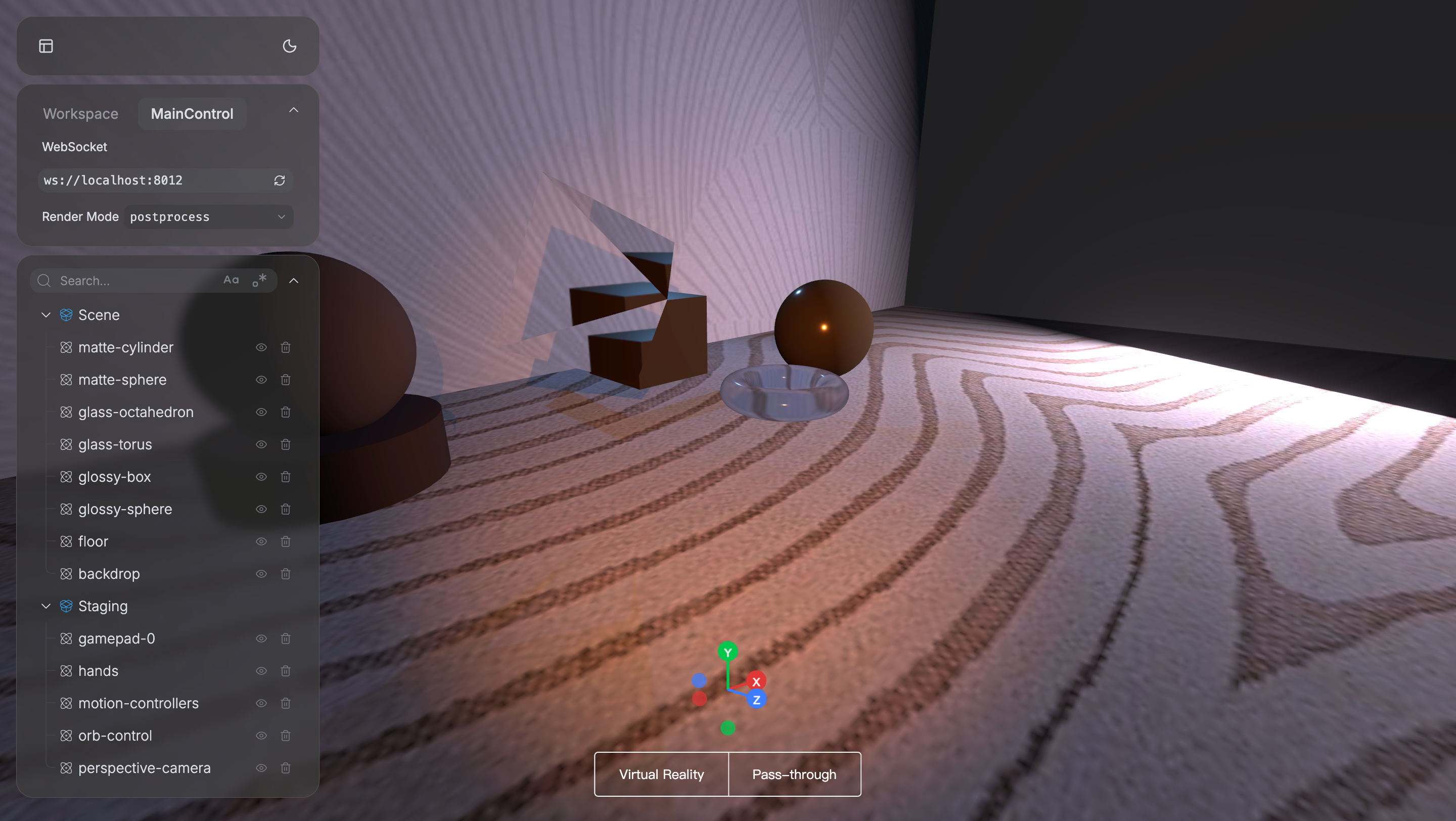 |
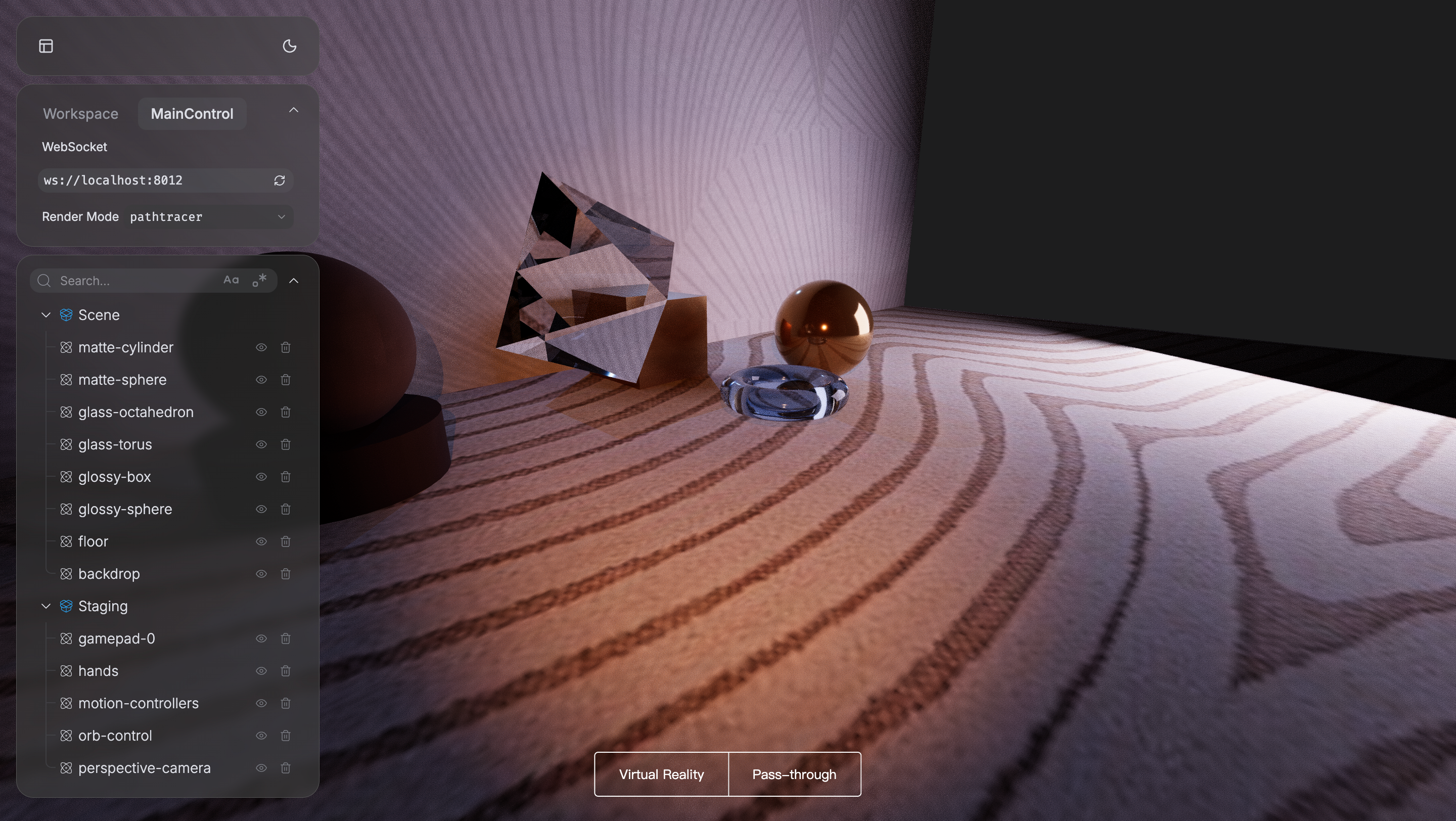 |
| Standard real-time rendering | Adds bloom effects for visual polish | Photorealistic with accurate lighting |
Available Render Modes
Vuer provides five distinct render modes that can be toggled through the web interface:
- RGB (default): Standard real-time rendering without post-processing. Best for interactive experiences and maximum performance.
- Post-process: Applies post-processing effects like bloom to add visual polish through screen-space effects.
- Depth: Visualizes scene depth, useful for debugging camera setups and understanding spatial relationships.
- Normal: Shows surface normals, helpful for debugging geometry and lighting issues.
- Path tracer: Photorealistic rendering with accurate global illumination, suitable for final renders and presentations.
Accessing Render Modes
The render mode can be controlled through the UI panel in the Vuer web interface:
- Open your scene in a browser
- Click on the MainControl tab in the left panel
- Find the RenderRoot section
- Select "Render Mode" from the dropdown menu
- Choose from:
rgb,postprocess,depth,normal, orpathtracer
The scene will update in real-time as you switch between modes.
Related Tutorials
- Materials and Textures - Materials affect how different render modes display your scene
- Lighting - Lighting setup is crucial for both post-processing and path tracing