Post-processing
Post-processing effects add visual polish to your 3D scenes through screen-space effects applied after the main render pass. Vuer includes bloom effects for glowing highlights and can be extended with additional passes like ambient occlusion, depth of field, and more.
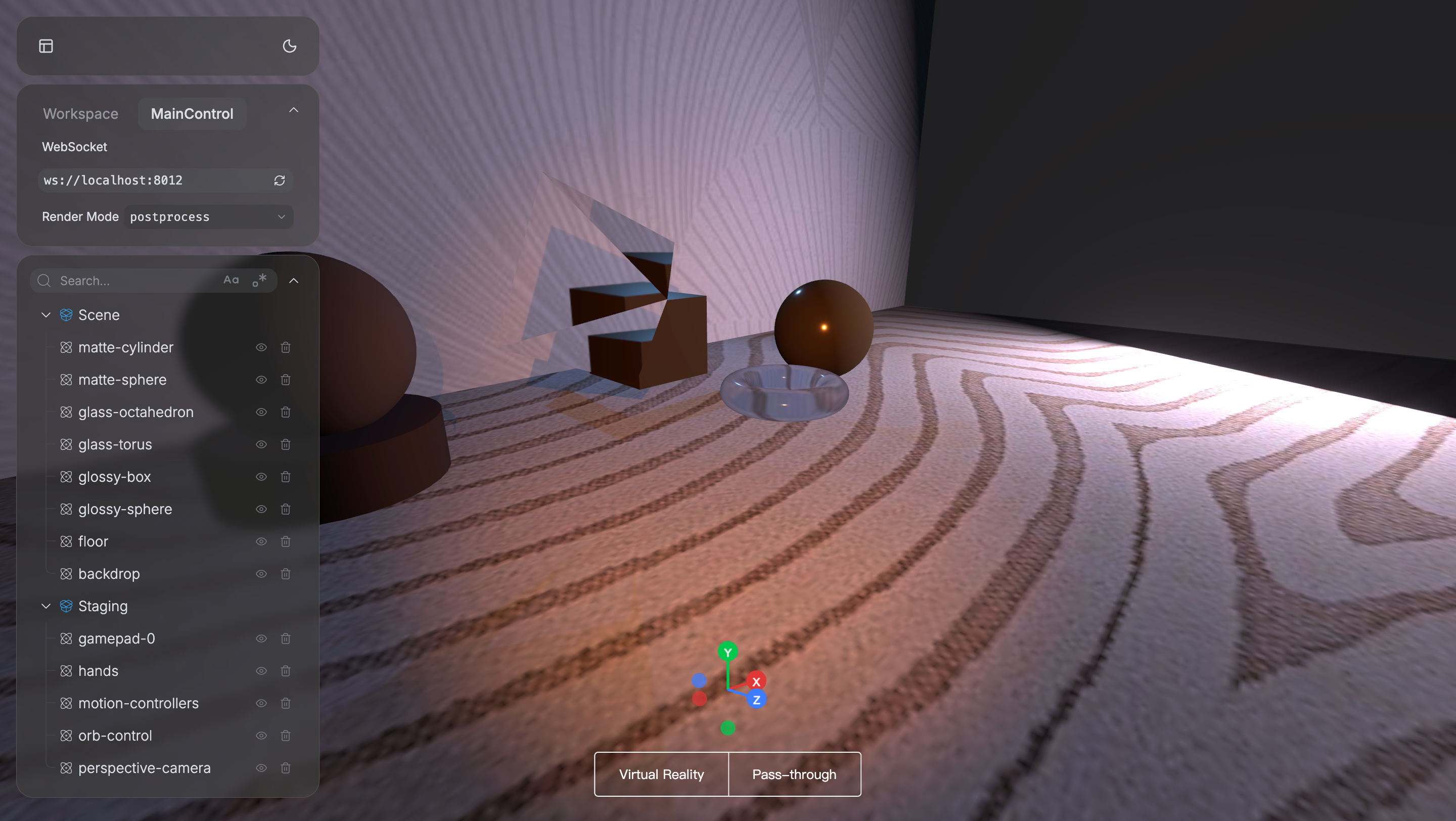
Example scene with bloom post-processing enabled.
Bloom Effect
Bloom creates a glow around bright areas in your scene, essential for:
- Light sources and emissive materials
- Metallic reflections
- Glass and transparent objects
- HDR rendering
How Bloom Works
The bloom effect:
- Identifies bright pixels above a luminance threshold
- Blurs these bright areas with multiple passes
- Composites the blurred result back onto the original image
Bloom Parameters
The bloom effect in Vuer uses the following default configuration:
// Frontend configuration
<Bloom
  luminanceThreshold={1}    // Brightness threshold (0-1+)
  intensity={0.15}          // Bloom strength
  levels={9}                // Mipmap blur levels
  mipmapBlur={true}         // Use mipmapped blurring
/>
Parameter Explanations:
-
luminanceThreshold: Only pixels brighter than this value will bloom (default: 1.0)
- Lower values: More bloom effect
- Higher values: Only very bright objects bloom
-
intensity: Controls how strong the bloom effect appears (default: 0.15)
- 0.0: No bloom
- 0.5: Strong bloom
- 1.0+: Very intense bloom
-
levels: Number of blur passes for smooth falloff (default: 9)
- More levels: Smoother, wider bloom
- Fewer levels: Sharper, tighter bloom
-
mipmapBlur: Uses mipmaps for performance (default: true)
Enhancing Post-Processing Effects
Post-processing effects like bloom work best when combined with appropriate materials, lighting, and tone mapping. The key is to create bright areas that exceed the bloom threshold.
Materials That Bloom
Materials affect post-processing through their brightness and reflectivity:
- Emissive materials: Self-illuminating surfaces with
emissiveandemissiveIntensityproperties - Metallic surfaces: Highly reflective materials with
metalness=1.0and lowroughness - Transmissive materials: Glass and transparent objects that focus light
Example materials that bloom well:
# Emissive sphere (self-glowing)
material=dict(emissive="#ff6600", emissiveIntensity=2.0)

# Metallic surface (reflective bloom)
material=dict(color="#ffd700", metalness=1.0, roughness=0.1)
Lighting Considerations
Bloom requires bright light sources:
- Use high intensity lights (50-100+ for spot/point lights)
- Combine multiple light sources for varied bloom effects
- Area lights create softer, more natural bloom
Tone Mapping
Tone mapping is essential for post-processing with HDR content. It converts high dynamic range values to displayable range while preserving detail:
Scene(
    # Your objects and lights...

    toneMapping="ACESFilmic",        # Recommended: industry standard
    toneMappingExposure=1.0,         # Adjust overall brightness
)
Available tone mapping modes:
"NoToneMapping": No conversion (may clip bright values)"Linear": Simple linear mapping"Reinhard": Classic algorithm, good for natural scenes"Cineon": Film-like look"ACESFilmic": Industry standard, recommended for most cases
Adjusting exposure: Use toneMappingExposure to control overall brightness:
< 1.0: Darker (e.g., 0.7 for moody scenes)= 1.0: Standard exposure> 1.0: Brighter (e.g., 1.2 for high-key scenes)
Best Practices
- Start subtle: Begin with low intensity and increase as needed
- Match lighting: Ensure lights are bright enough to create bloom
- Use tone mapping: Essential for HDR workflows
- Test on target hardware: Post-processing may be slow on mobile/VR
- Disable in VR mode: Vuer automatically disables post-processing in VR for performance
Performance Issues
Problem: Low frame rate with post-processing
Solutions:
- Reduce screen resolution
- Simplify bloom (fewer levels)
- Use simpler tone mapping (Linear vs ACESFilmic)
- Test with post-processing disabled
Related Tutorials
- Path Tracing Renders - Achieve photorealistic rendering with accurate light simulation
- Materials and Textures - Create materials that work well with post-processing
- Lighting - Set up lighting to maximize bloom and HDR effects